See how your venue stacks up, without guessing.
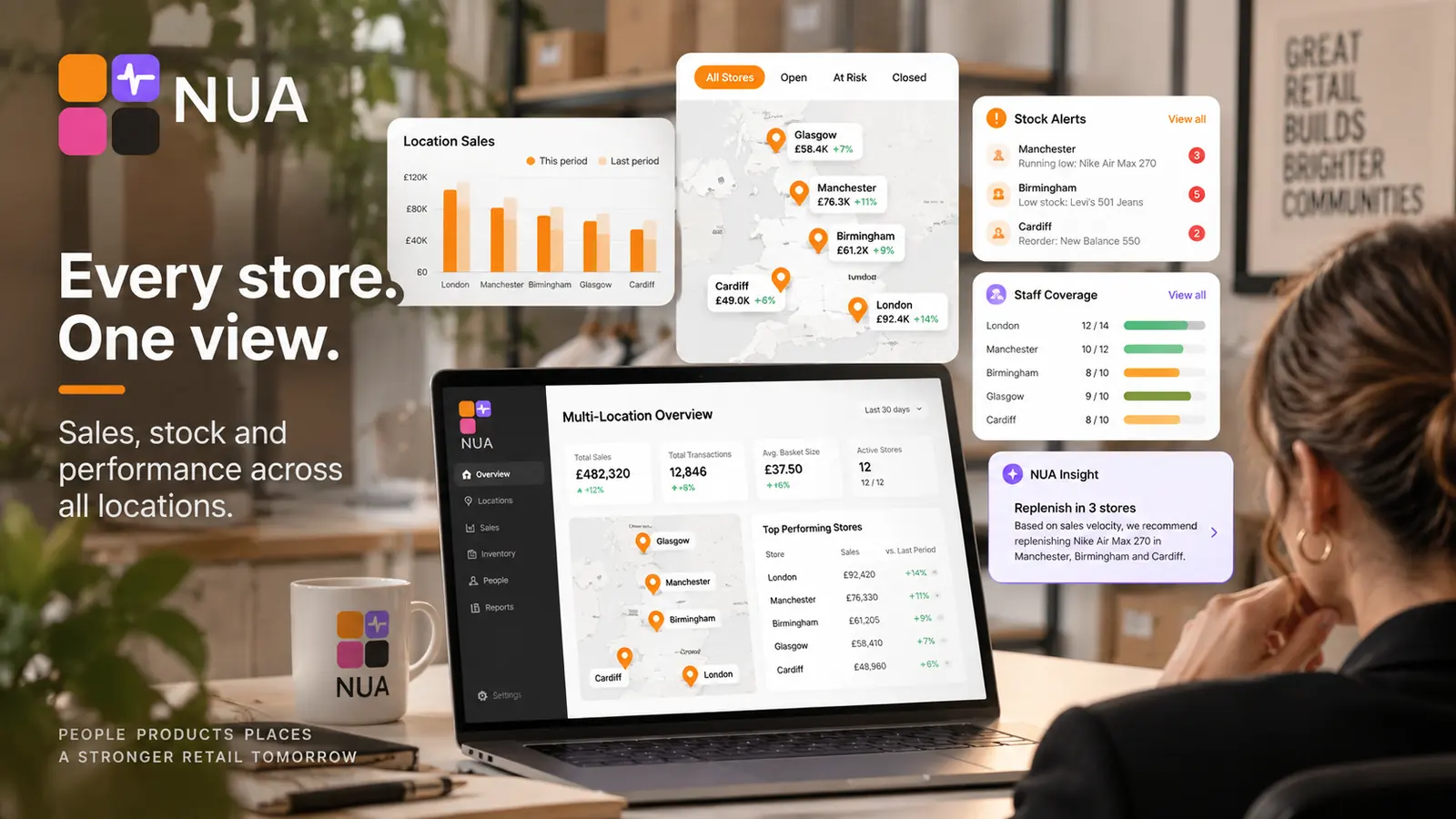
Compare your own locations against each other, and — once opted in — against anonymized venues like yours across the NUA network.
- Analytics connected (benchmarking reads from the same data)
- Growth or Enterprise plan for cross-venue and network comparisons
- A decision on whether to opt in to anonymized network benchmarking (off by default)
- 1
Start with your own portfolio
If you run more than one location, Benchmark → Portfolio compares them against each other immediately — no network data required.
- 2
Review your venue category and region
Under Benchmark → Profile, confirm the category and region your venue is tagged with — this is what any peer comparison is matched on.
- 3
Opt in to network benchmarking (optional)
Enable Benchmark → Network Insights if you want anonymized comparison against similar venues on NUA. This is opt-in and off by default.
- 4
Understand the anonymity threshold
Network comparisons only appear once enough venues in your category and region have opted in — this protects everyone's anonymity and means early results may be limited.
- 5
Set drift alerts
Configure an alert if a metric (e.g. food cost %) moves more than a set amount away from your own trend or your peer median, under Benchmark → Alerts.
- 6
Revisit monthly
Treat a single benchmark as directional, not gospel — it gets more useful as both your own history and your peer group mature.
- Your own multi-location comparison is useful on day one; network comparison is the part that improves as the NUA customer base grows.
- Use benchmarking alongside your own historical trend, not instead of it — a peer median is context, not a target.
- Keep cost categorization consistent across venues (e.g. how you classify delivery fees) or portfolio comparisons will be misleading.
- No network benchmark is showing yet.Your category/region peer group likely hasn't reached the minimum size needed to preserve anonymity — this resolves automatically as more venues opt in.
- A number looks off compared to the benchmark.Check your cost categorization matches the benchmark's methodology, under Benchmark → Methodology, before assuming the comparison is wrong.