Know what's actually left, in real time.
Recipe-level stock tracking, supplier comparison and invoice import, tied directly to sales.
- Menu items already imported into POS
- A stocktake or rough starting inventory count
- Supplier invoices (PDF or spreadsheet) if you want to use invoice import
- 1
Add your ingredients
Under Inventory → Items, add each ingredient with unit of measure and current stock level, or bulk-import from a spreadsheet.
- 2
Build recipes
Link menu items to the ingredients and quantities they consume under Menu → Recipes, so every sale automatically decrements stock.
- 3
Import supplier invoices
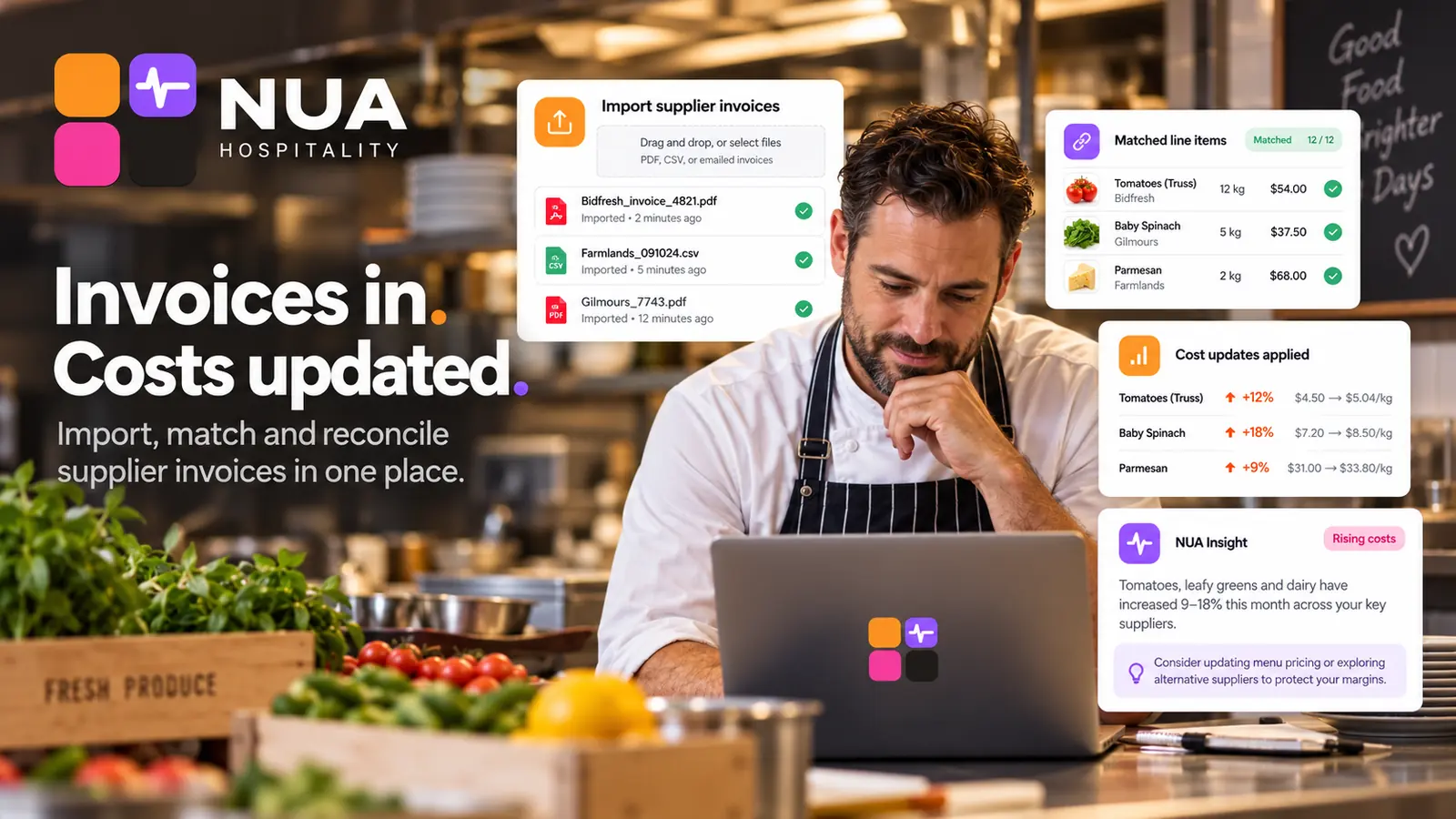
Upload a supplier invoice under Inventory → Invoices; NUA reads line items and reconciles them against your stock automatically.
- 4
Set par levels and alerts
Define a low-stock threshold per item so you're warned before you run out, not after.
- 5
Add suppliers for comparison
Enter your regular suppliers' pricing under Inventory → Suppliers to enable side-by-side cost comparison on reorders.
- 6
Build the pantry list
Confirm your live Pantry List (Inventory → Pantry) matches a physical spot-check before relying on it day to day.
- Recipe accuracy is everything here — stock depletion is only as good as the recipe quantities behind each menu item.
- Invoice import saves the most time when suppliers send consistent PDF or CSV formats; ask yours if they can.
- Review par levels after your first month — real usage is usually a better guide than an initial guess.
- Stock levels don't match a physical count.Check recipe quantities under Menu → Recipes for the affected item — most drift comes from an incorrect recipe, not a sales-sync issue.
- An invoice import missed some line items.Line items NUA isn't confident about are flagged for manual review under Inventory → Invoices → Needs Review, rather than silently skipped.